Use Apple Watch as a Bluetooth heart rate monitor
Send Apple Watch heart rate to your fitness equipment through your iPhone. Follow the setup steps and fix common connection problems.
Pulse Link 2.0 · Updated
Your Apple Watch measures heart rate. Pulse Link sends those readings through your paired iPhone to your equipment or training app over Bluetooth. Keep the iPhone nearby throughout the workout.
What you need
- Pulse Link 2.0 installed on your paired iPhone and Apple Watch.
- iOS 17.6 or later and watchOS 10.6 or later. Newer devices may need newer software.
- Equipment that accepts Bluetooth heart rate monitors, or a training app on a separate device.
Connect your equipment and start a workout
- Open Pulse Link on both devices. Allow Bluetooth access on iPhone and the Health permissions needed for your workout.
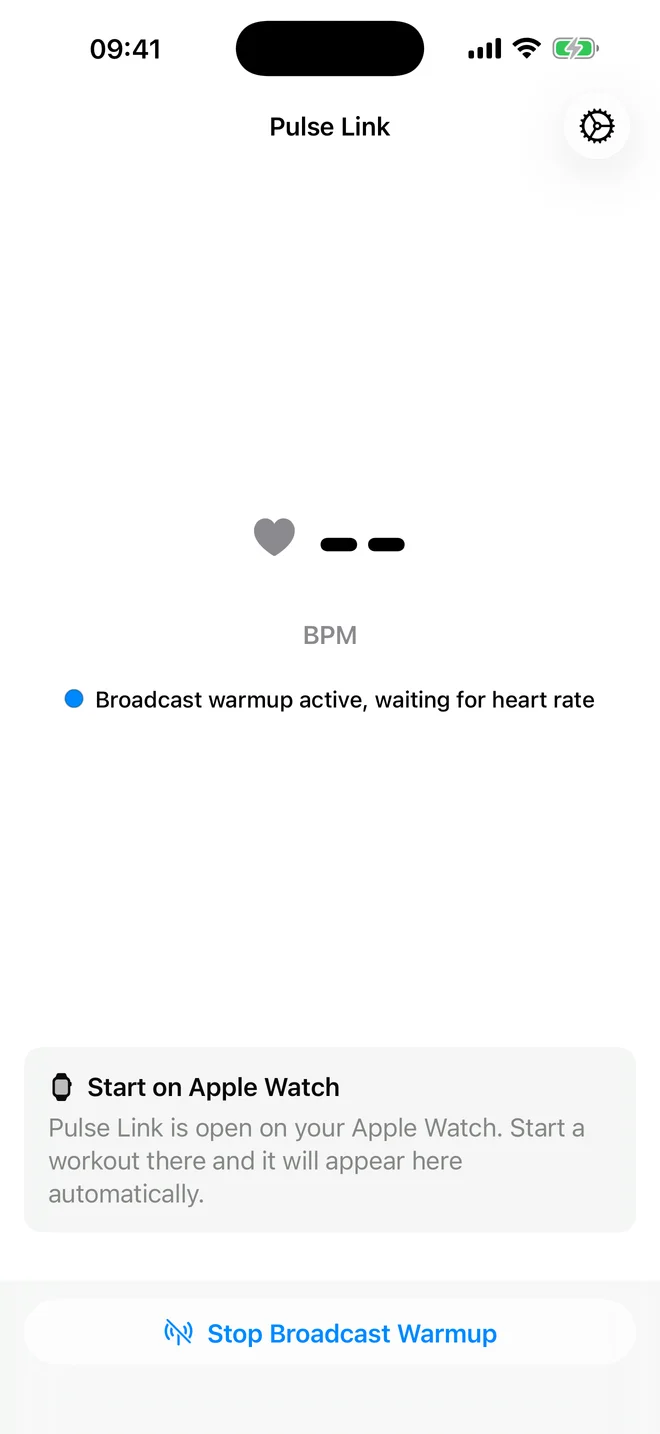
- Turn on Broadcast Warmup. Tap Start Broadcast Warmup on iPhone. Your equipment can now find Pulse Link.
- Pair your equipment. Open its heart rate sensor menu. Search for a Bluetooth monitor and choose Pulse Link, or the name you set in Pulse Link Settings.
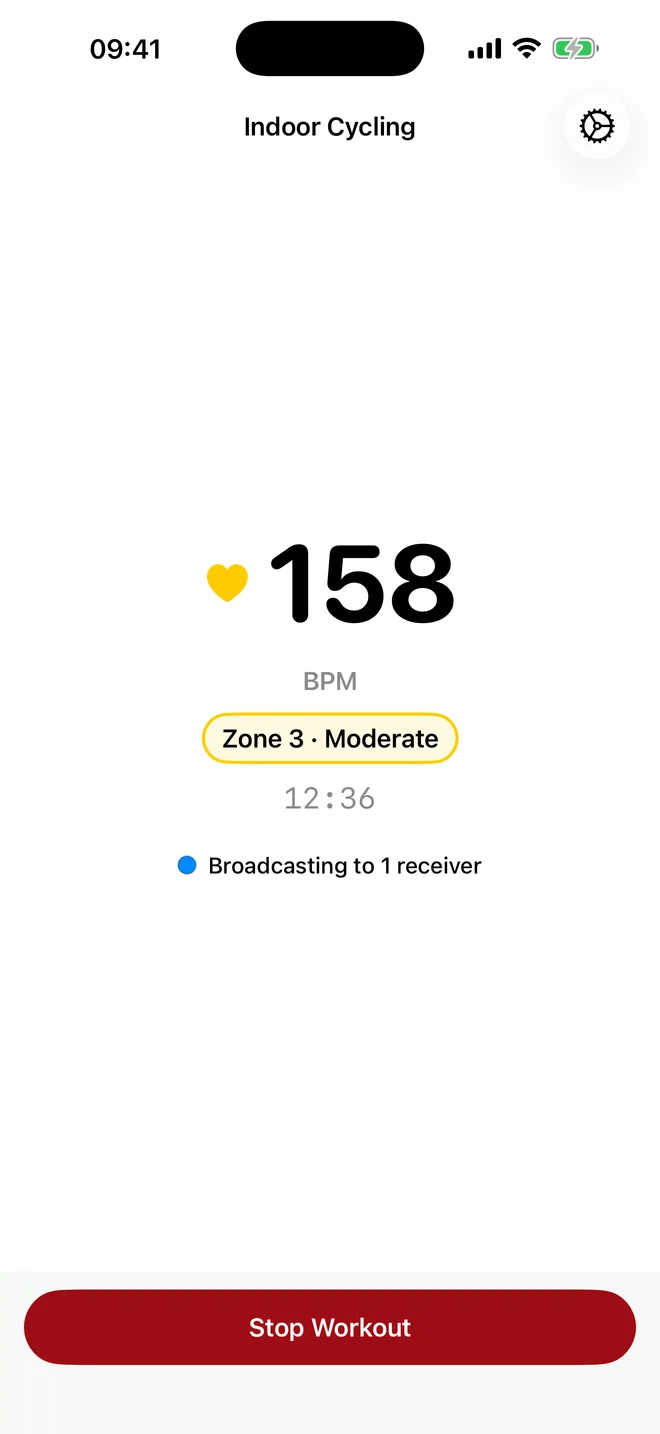
- Start your workout. In Pulse Link on Apple Watch, choose a workout type and tap Start Workout.
- Check your heart rate. Wait for a reading on iPhone, then check that your equipment or training app shows live heart rate too.
Broadcast Warmup prepares the connection. Live heart rate starts when your workout is running and the Watch has a reading.
Finish the workout
End the workout on Apple Watch or request a stop from iPhone. If you turned on warmup yourself, tap Stop Broadcast Warmup on iPhone when you have finished.
Pulse Link saves workouts to Apple Health by default. If you turned off automatic saving, choose Keep in Apple Health or Delete Workout when asked.
Troubleshoot the connection
My equipment cannot find Pulse Link
Check that Bluetooth access is allowed for Pulse Link and Broadcast Warmup is on. Search in your equipment’s heart rate sensor menu. Its manual must list Bluetooth heart rate support. If three devices are already connected to Pulse Link, disconnect one first.
My equipment connects but shows no heart rate
Start a workout in Pulse Link on Apple Watch and check that the Watch shows a reading. Warmup alone has no heart rate data. If the reading is missing, check the Watch fit, Health permissions and connection to iPhone.
Heart-rate updates stop during the workout
Check the connection status on iPhone and whether the Watch still shows heart rate. Keep your devices nearby. Pulse Link resumes updates when new readings arrive. If your equipment has disconnected, pair it again.
Can I leave the iPhone behind?
No. Your iPhone sends heart rate to the equipment over Bluetooth. Keep it near your Watch and equipment throughout the workout.
Using AirPods with heart rate sensing?
Follow the AirPods workout guide to start from iPhone instead.