Share AirPods heart rate over Bluetooth
Use heart-rate-sensing AirPods with Pulse Link on iOS 26 or later. Start a workout on iPhone and send your heart rate to fitness equipment.
Pulse Link 2.0 · Updated
Start a workout in Pulse Link on iPhone while wearing AirPods with heart rate sensing. Your iPhone sends the readings to connected fitness equipment over Bluetooth. You do not need an Apple Watch for this setup.
What you need
- Pulse Link 2.0 on an iPhone running iOS 26 or later.
- AirPods with heart rate sensing, such as AirPods Pro 3, connected to your iPhone. Models without a heart rate sensor cannot supply readings.
- Equipment that accepts Bluetooth heart rate monitors, or a training app on a separate device.
Check Apple’s AirPods Pro 3 heart rate instructions and Pulse Link’s device requirements before you start.
Set up AirPods and connect your equipment
- Connect your AirPods. Wear them, connect them to iPhone, and check that their heart rate monitoring setting is on.
- Turn on AirPods heart rate in Pulse Link. Open Pulse Link Settings. Under iPhone Workout, turn on AirPods Heart Rate, choose a Default Workout, then tap Done.
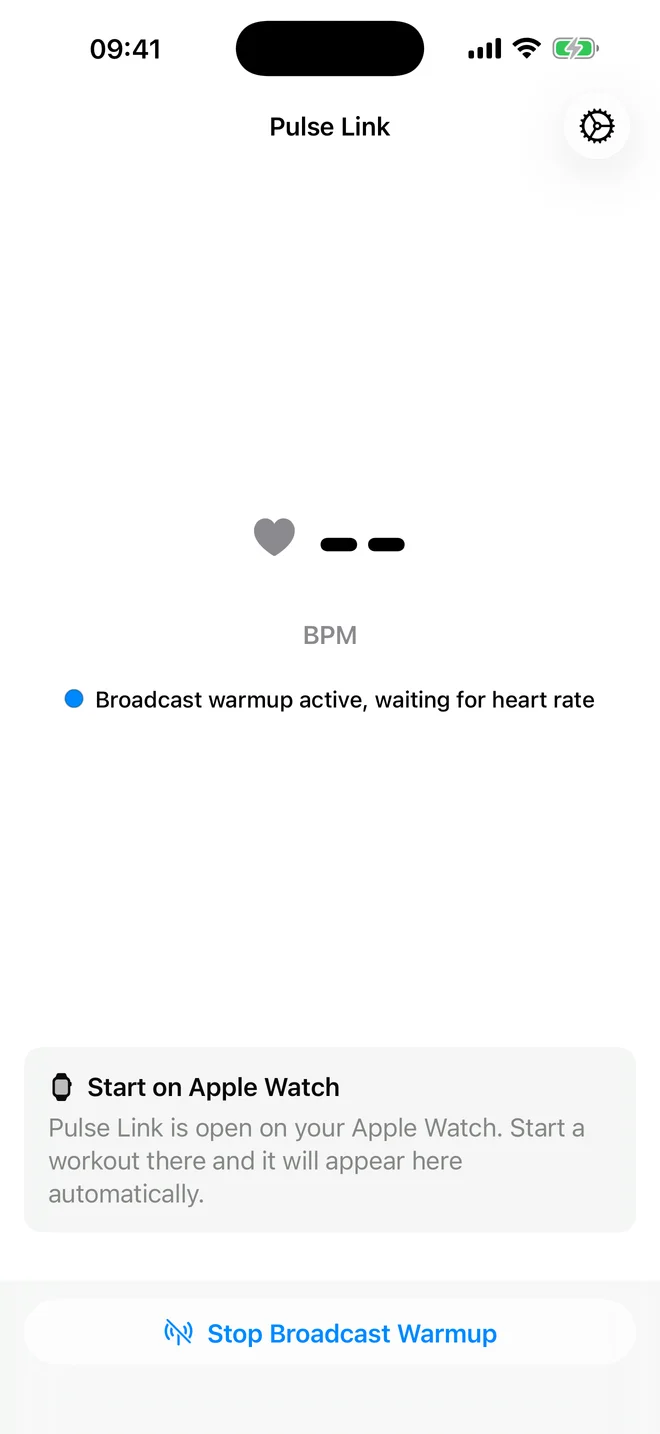
- Turn on Broadcast Warmup. Tap Start Broadcast Warmup on the main screen. Allow Bluetooth access if asked.
- Pair your equipment. Open its heart rate sensor menu and choose Pulse Link, or the Bluetooth name you set in Pulse Link Settings.
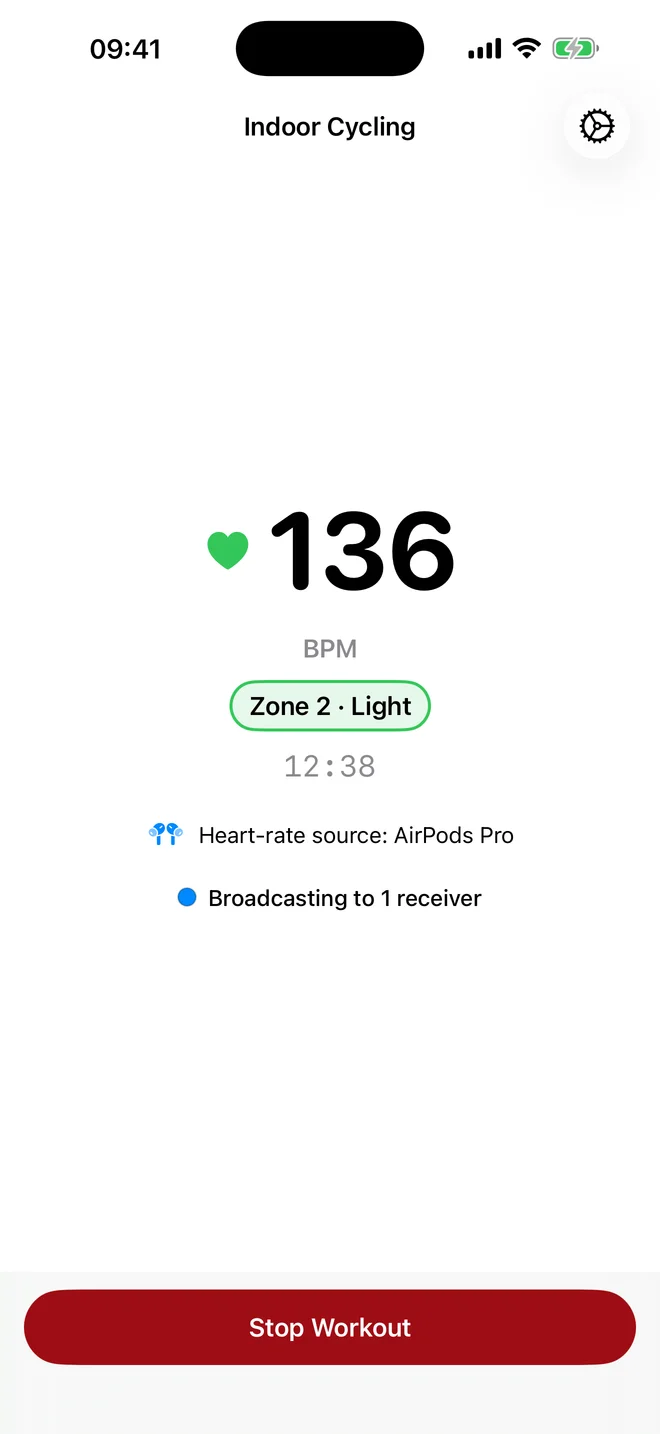
- Start your workout. Tap Start AirPods Workout on iPhone and allow the Health permissions needed for the workout.
- Check your heart rate. Wait for a live reading in Pulse Link, then check that your equipment or training app shows heart rate too.
Apple Health chooses the heart rate source it considers most reliable. Pulse Link uses those readings. Check the source and live heart rate shown in the app.
Switch to Apple Watch or finish your workout
If you have a paired Apple Watch, open Pulse Link there to follow the workout. Tap Take Over on Apple Watch to switch to Watch sensors. Keep your iPhone nearby: it still sends heart rate to your equipment.
Tap Stop Workout on iPhone to finish. If you turned on warmup yourself, tap Stop Broadcast Warmup when you have finished.
Pulse Link saves workouts to Apple Health by default. If you turn off automatic saving, it may save a completed workout temporarily until you choose Keep in Apple Health or Delete Workout.
Troubleshoot AirPods heart rate
AirPods Heart Rate is unavailable
Check that your iPhone runs iOS 26 or later and your AirPods have heart rate sensing. AirPods that only provide audio cannot measure heart rate.
Pulse Link is waiting for heart rate
Check that your AirPods are connected, fit well and have heart rate monitoring turned on. Start the workout on iPhone and allow the Health permissions it needs. Warmup alone does not provide heart rate readings.
The heart-rate signal is lost
Check the AirPods fit and connection. Pulse Link pauses updates when readings stop and resumes when new ones arrive. If you have a paired Watch, you can switch to its sensors.
My equipment cannot find Pulse Link
Turn on Broadcast Warmup and allow Bluetooth access for Pulse Link. Keep the equipment close to your iPhone and search in its heart rate sensor menu. Check that it accepts Bluetooth heart rate monitors.
Using Apple Watch for heart rate?
Follow the Apple Watch Bluetooth setup guide.